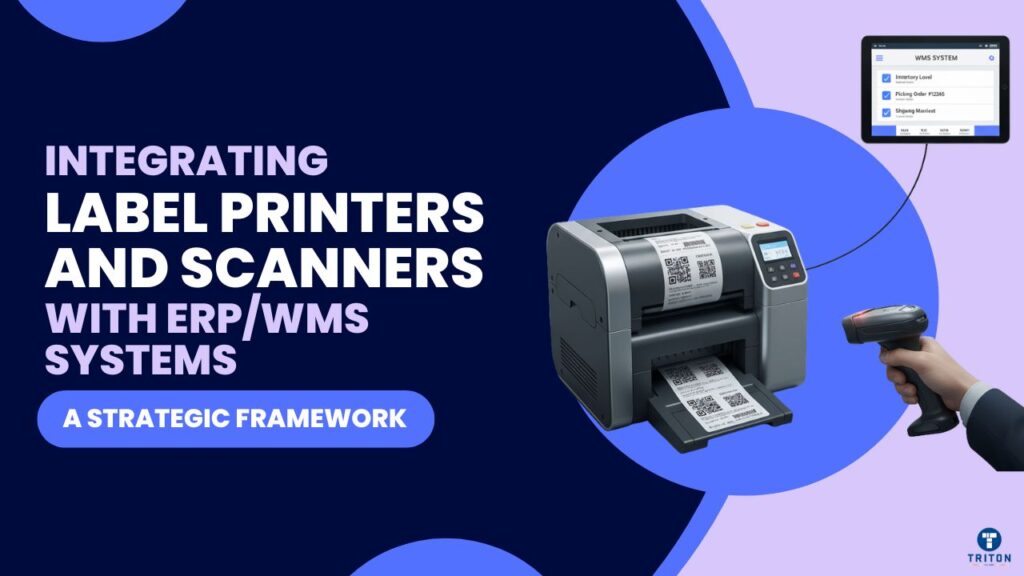
Most warehouse managers purchase label printers and scanners, only to discover that the hardware works, but the integration fails to function correctly. The printer is connected to the network, the scanner connects via Bluetooth, yet inventory updates lag by hours instead of seconds. This happens because teams focus on devices instead of integration architecture.
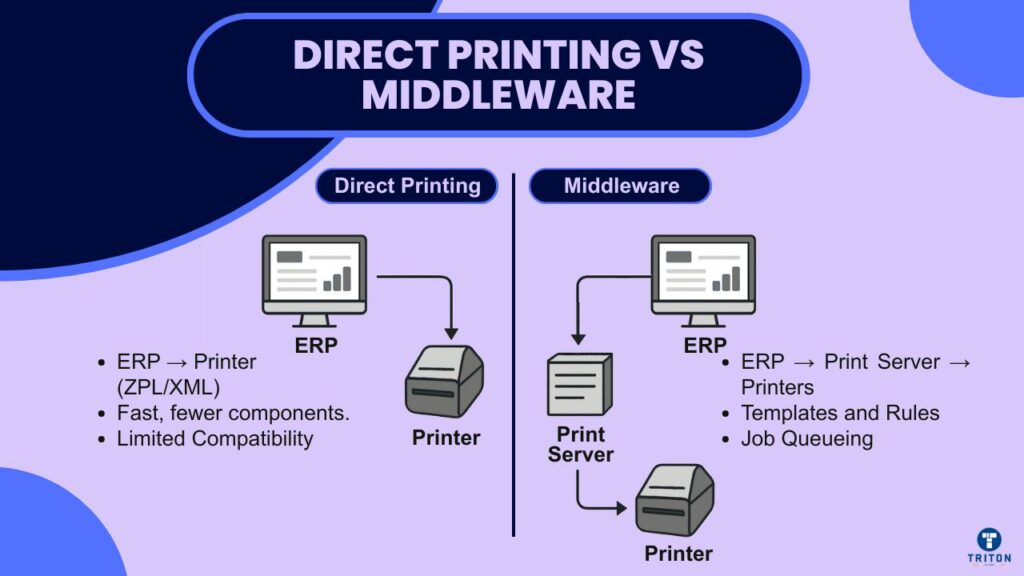
Integration creates a closed loop. Your ERP generates a label with a barcode. A printer outputs that label within seconds. Later, someone scans the barcode, and the system updates the inventory in real-time. This loop eliminates manual data entry and the errors that follow it. The proper integration method matters more than printer resolution or scanner range.
Three factors determine which integration approach is most effective: system complexity, business scale, and existing infrastructure. A single-location distributor with a single ERP can utilise direct printer connections. A manufacturer with multiple warehouses and a mix of printer brands requires middleware to manage their operations effectively.
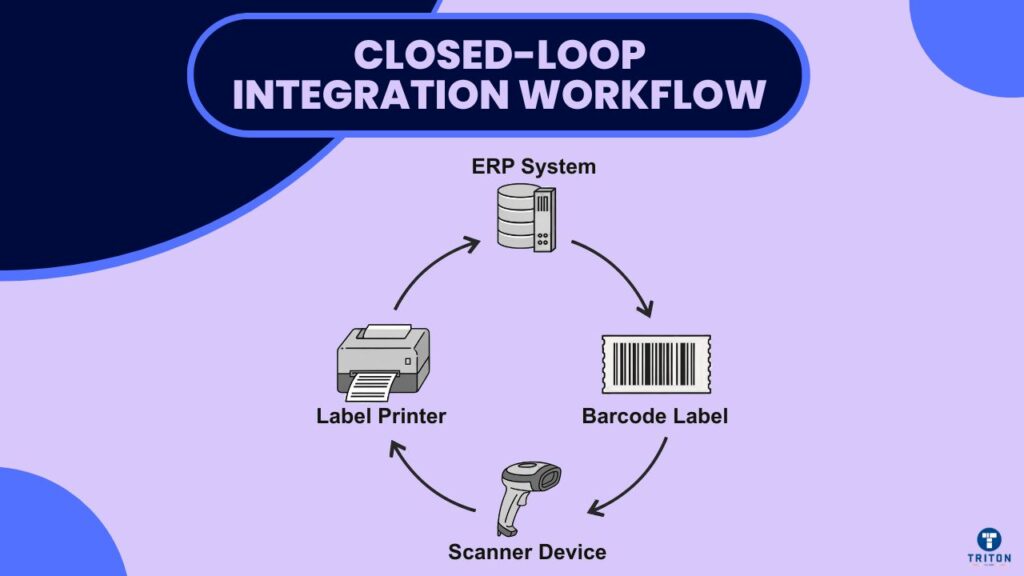
You have two options for connecting label printers to your ERP or WMS: direct printing or middleware.
Modern industrial printers accept commands in native languages, such as ZPL for Zebra devices or XML for others. Your ERP sends print commands directly to the printer over the network. Oracle WMS can output XML that certain printers can parse without requiring intermediate software. SAP systems generate ZPL code for Zebra printers.
Direct printing reduces complexity. You need fewer components, which means fewer points of failure. Print jobs complete faster because data travels one hop instead of two. Configuration is simpler: you map an ERP printer definition to a network address and start printing.
This method has limits. Each printer model understands specific commands. If you run Zebra, SATO, and Datamax printers in different facilities, you must maintain separate label formats for each. Adding conditional printing logic requires ERP customisation.
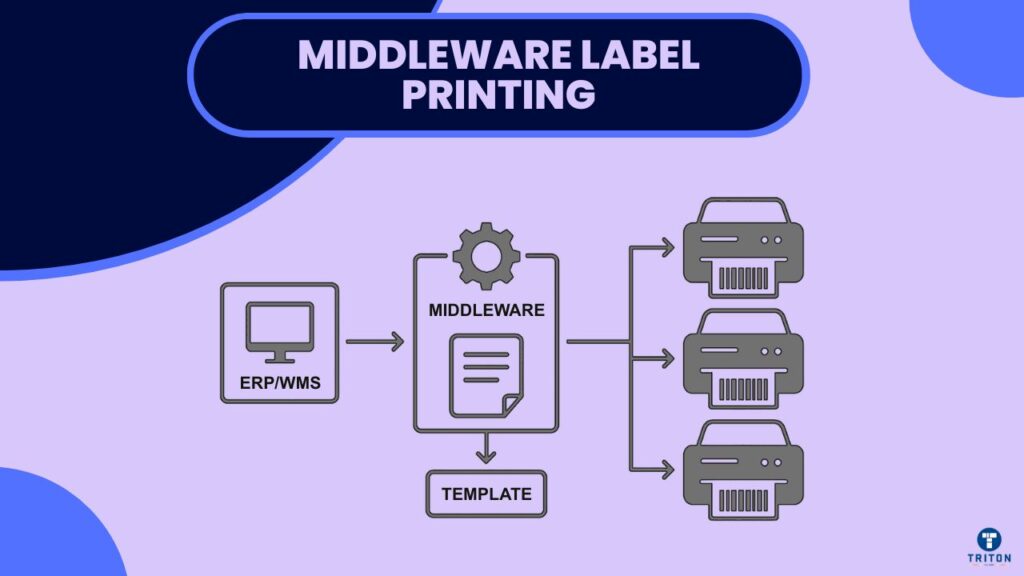
Label management software, such as BarTender, NiceLabel, or Loftware, sits between your ERP and printers. Your ERP sends data in a generic format. The print server merges this data with predefined templates and handles the actual printing.
Middleware adds cost but delivers flexibility. You design labels in a visual editor instead of writing printer commands. One template works across multiple printer brands because the software generates device-specific code. Business rules reside in the print server: if the quantity exceeds 100, use large labels; if the product contains lithium batteries, add hazmat symbols.
Print queues are centralised in the middleware. When a printer goes offline, jobs queue automatically instead of failing. The software logs every print job, including the timestamp and the user. Template management becomes centralised: update one template file and all facilities use the new design.
Scanner integration ranges from simple keyboard emulation to custom API calls. Four methods cover most implementations.
USB and Bluetooth scanners operate in keyboard wedge mode by default. Scan a barcode and the device types those characters into the focused field on your screen. No software, no configuration.
This works for basic operations. Your receiving clerk opens the ERP receiving screen, clicks in the item number field, and scans incoming products. Many small operations run entirely on keyboard wedge scanning.
The method breaks down with complex workflows. A GS1-128 barcode encodes the item number, quantity, and lot in a single code. Keyboard wedge dumps the entire string into one field. Your ERP must parse it, or users must manually separate the values.
Modern ERP and WMS platforms include mobile scanning solutions. SAP Extended Warehouse Management has RF transactions for handheld devices. NetSuite WMS offers a mobile app with scanning capabilities. Microsoft Dynamics 365 enables custom Power Apps that integrate device cameras for barcode reading.
These apps understand business context. Scanning during picking automatically decrements inventory and updates order status. The app knows which warehouse you work in and what data it expects to receive. Error handling is built in: if you scan an item not on your pick list, the app rejects it immediately.
Use these apps when your ERP vendor offers them and they match your workflows. The constraint is hardware compatibility: some apps require specific device operating systems.
Scanner middleware sits between devices and your ERP, changing or queuing data. Zebra’s DataWedge on Android devices captures scans and forwards them via HTTP requests. RF-SMART adds mobile workflows to NetSuite.
Middleware helps in mixed environments. Your facility might use handheld computers on the warehouse floor, fixed USB scanners at receiving docks, and RFID portals at shipping doors. Middleware consolidates these inputs into a standard format before sending transactions to your ERP.
Parsing happens in the middleware layer. A GS1-128 barcode encodes application identifiers that specify the content type. Middleware reads these identifiers and maps each to the correct ERP field.
Custom integration calls your ERP’s REST or SOAP API when scans occur. You write software that captures scan events from the device SDK and issues HTTP requests to ERP endpoints.
API integration preserves your ERP’s business rules and ensures seamless integration with external systems, maintaining the integrity of your business processes. Zebra recommends API calls over direct database writes because APIs validate data and maintain referential integrity. This method requires development effort but delivers an exact workflow match.
RFID readers scan multiple tags simultaneously. A forklift passing through a portal reads 30 pallet tags in two seconds. This bulk reading needs a different integration logic than one-at-a-time barcode scanning.
Middleware filters RFID reads. A tag might trigger multiple reads as it moves through the antenna field. Software removes duplicates and sends one transaction to your ERP. You define which physical reads correspond to business events.
Follow these steps to implement printer integration.
Follow these steps to implement scanner integration.
Apply these principles when designing your integration.
Standardise on compatible hardware. Select devices that your ERP vendor has certified as compatible with your system. Standardise on one or two scanner models and printer models. This simplifies configuration and reduces training burden. Print quality matters more than hardware features. Produce barcodes at a sufficient size with adequate error correction. Include human-readable text as backup.
Use official APIs. Integrate through supported interfaces instead of writing directly to database tables. API calls respect business logic and validate data. Direct database writes bypass these protections, potentially corrupting data. APIs remain stable across ERP upgrades, while database schemas are updated.
Deploy middleware for scale. Small operations with simple requirements can use direct integration. Multiple locations, legacy systems, or mixed hardware environments benefit from middleware bridges. Middleware provides data conversion and enables offline operation.
Balance real-time and batch processing. Prioritise real-time updates for critical processes, such as inventory accuracy. Other processes tolerate batch updates. Implement offline buffers for connectivity gaps. Mobile devices in remote warehouse areas queue scans locally and sync when connectivity returns.
Secure network connections. Use HTTPS for API calls and WPA2 or WPA3 for Wi-Fi connections. Authenticate devices and users. Segment devices on separate network zones. Update device firmware regularly to patch security vulnerabilities.
Track these metrics to evaluate integration performance.
Print success rate. Measure the percentage of print jobs completed successfully on the first attempt. High success rates above 95% indicate reliable integration. Track failures by printer and transaction type.
Scan error rate. Calculate how often scans fail to register in your ERP. Low error rates, typically below 2%, indicate good barcode quality and a properly configured integration.
Transaction processing time. Measure the interval from scan to ERP confirmation. Well-designed integrations are complete in one to three seconds. Longer times frustrate users and slow operations.
User adoption. Monitor how consistently workers use scanning versus manual entry. Full adoption means your integration delivers value. Partial adoption indicates problems with workflows, equipment, or training.
Inventory accuracy. Compare system inventory records against physical counts. Integration should increase accuracy by eliminating manual entry errors. Track accuracy by location and product category.
Cost per transaction. Calculate the total cost of hardware, software, network infrastructure, and maintenance divided by transaction volume. Compare the cost of your previous manual process with this one.
Integration architecture determines whether your label printers and scanners improve operations or create new problems. This article presented a decision framework that matches integration methods to business requirements.
Choose between direct printing and middleware based on your printer diversity and business logic complexity. Select scanner integration from keyboard wedge, mobile apps, middleware, or API based on workflow sophistication and development capability. Follow implementation blueprints that progress from hardware selection through configuration, integration, testing, and deployment.
Apply strategic best practices: standardise hardware, use official APIs, deploy middleware at scale, balance real-time and batch processing, and secure network connections. Measure integration success through print success rates, scan error rates, transaction processing time, user adoption, inventory accuracy, and cost per transaction.
Begin your integration project by auditing current processes and pain points. Identify which workflows will benefit most from real-time data capture.
Select an integration approach that aligns with your current infrastructure and scales with your business.
For seamless integration of industrial label printers, scanners, and middleware systems that optimise your ERP and WMS performance, visit Triton Store, your trusted source for professional labelling hardware, software, and integration solutions.